
How to Add a Token to MetaMask on BNB Chain
August 6, 2026
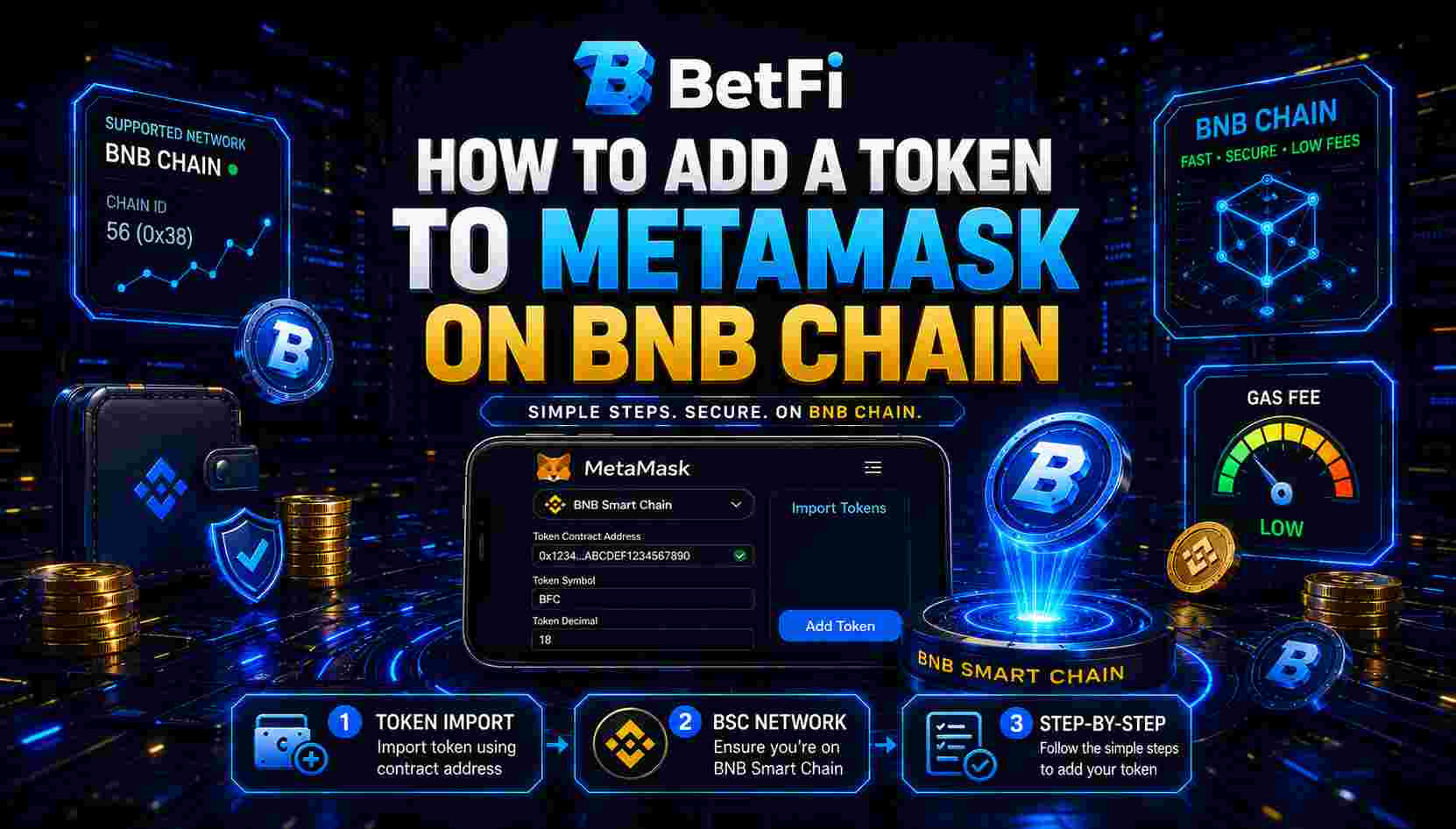
If a token you bought does not appear in MetaMask, nothing has gone wrong. MetaMask only displays tokens it has been told about, and it knows about very few by default. Confirm you are on BNB Smart Chain with chain ID 56, get the verified contract address from an official source, and import it as a custom token. The whole process takes about ninety seconds and costs no gas.
Major Points Covered
- Your tokens are recorded on-chain whether or not the wallet displays them.
- Chain ID 56 is BNB Smart Chain; chain ID 97 is the testnet, where tokens have no value.
- The contract address is a token's only real identity — names and logos can be copied by anyone.
- If symbol and decimals will not auto-fill, something is wrong; stop rather than proceed.
- Never take a contract address from a direct message.
Direct Answers to Common Questions
To add a token to MetaMask, first confirm the network selector shows BNB Smart Chain. Then scroll to the bottom of the Tokens tab, click Import tokens, and select the Custom token tab. Paste the token's contract address into the first field. The symbol and decimals should populate automatically — if they do not, either the address is wrong or you are on the wrong network. Click Next, then Import. The token and your balance will now appear. Importing is a local, cosmetic action that costs no gas and can be reversed by hiding the token again.
Understanding Why Your Token Is Not Showing
MetaMask is a key manager, not a blockchain explorer. It tracks the native currency of whichever network you are on, which is BNB on BNB Smart Chain, plus any tokens you have explicitly imported.
Your tokens are not lost. They are recorded on-chain against your address and remain there whether or not your wallet displays them. Importing simply tells the interface to look.
You can confirm this before doing anything: paste your wallet address into BscScan and open the Token Holdings dropdown. If the token appears there, it is yours.
Step 1: Confirm You Are on BNB Smart Chain
A BEP-20 token will never appear while MetaMask is set to Ethereum Mainnet. Check the network selector at the top of the extension.
Recent MetaMask versions include BNB Smart Chain by default. If yours does not, add it via Settings → Networks → Add network using these values:
- Network name — BNB Smart Chain
- RPC URL — <https://bsc-dataseed.binance.org/>
- Chain ID — 56
- Currency symbol — BNB
- Block explorer — <https://bscscan.com>
Chain ID 56 is the value to verify. Chain ID 97 is the testnet, where tokens have no value. If a site prompts you to add a network with a different chain ID while claiming to be BNB Smart Chain, decline.

Step 2: Find the Verified Contract Address
Every BEP-20 token is identified by a unique contract address beginning 0x.
Get it from one of these, and nowhere else:
- The project's official website
- The project's official documentation or whitepaper
- BscScan, with the token showing a verified contract
- A major aggregator such as CoinGecko
Never take a contract address from a direct message, a comment thread reply, or a search advertisement. Fake tokens impersonating real projects — identical name, identical logo, different address — are among the most common scams in crypto. The address is the only thing that identifies a token; the name is decoration and anyone can copy it.
Cross-check against two independent sources before using it.
Step 3: Import the Custom Token
On desktop:
- Open MetaMask and confirm BNB Smart Chain is selected
- Scroll to the bottom of the Tokens tab
- Click Import tokens
- Select the Custom token tab
- Paste the contract address into the first field
- Symbol and decimals should populate automatically
- Click Next, then Import
On mobile: open the app, confirm the network, tap Import Tokens at the bottom of the token list, choose Custom Token, paste the address, confirm the auto-filled details and import.
The auto-fill behaviour is a useful sanity check in itself. If MetaMask cannot read a symbol and decimal count from the address you pasted, stop — something is wrong before you go further.

Step 4: Confirm the Balance
The token should now appear with your balance. Compare it against what BscScan shows for your address, and they should match exactly.
Importing is a purely local, cosmetic action. It costs no gas, touches nothing on-chain, and can be reversed by hiding the token again.

Troubleshooting
Symbol and decimals will not auto-fill. Wrong network, or an invalid address. Confirm BNB Smart Chain, then re-copy the address from an official source.
Token imported but balance shows zero. Check the receiving address on BscScan against the address in MetaMask. If they differ, the tokens went elsewhere. If they match and BscScan shows a balance, switch networks and back, or restart the wallet.
Two tokens with the same name appear. You have imported a counterfeit alongside the real one. Verify both addresses against the official source and hide the impostor. Do not attempt to sell or swap it — some are designed specifically to drain wallets on interaction.
Received but missing from history. MetaMask's activity feed sometimes omits incoming token transfers. BscScan is the authoritative record.
A Few Safety Rules Worth Repeating
- Never import a contract address received in a direct message.
- Never enter your seed phrase into any website, for any reason.
- Support staff will never ask for your seed phrase. Anyone who does is an attacker.
- Tokens appearing unrequested in your wallet are usually bait. Do not interact with them.
- Verify contract addresses against two independent sources.
Other Wallets
The process is broadly identical elsewhere. Trust Wallet uses the token list's + icon then Add Custom Token, with the network set to Smart Chain. SafePal and hardware wallets paired with MetaMask follow the same flow. In every case you need the network correct and the contract address verified.
Adding BFC to Your Wallet
BFC is a BEP-20 token on BNB Smart Chain, so everything above applies directly. Take the contract address from the official BetFi site or the whitepaper, cross-check it on BscScan, and never from anywhere else.
If someone messages you an address claiming to be BFC, they are not from BetFi.
Frequently Asked Questions
Why is my token not showing in MetaMask?
Because MetaMask only displays tokens it has been told about. Your tokens are recorded on-chain regardless; importing the contract address simply tells the interface to look for them.
What chain ID is BNB Smart Chain?
- Chain ID 97 is the testnet, where tokens carry no value. If a site asks you to add a network with a different ID while calling it BNB Smart Chain, decline.
Does importing a token cost gas?
No. Importing is a local, cosmetic action inside your wallet. It touches nothing on-chain, costs nothing, and can be reversed by hiding the token again.
Why won't the symbol and decimals fill in automatically?
Either the address is invalid or you are on the wrong network. Confirm BNB Smart Chain is selected, then re-copy the address directly from an official source.
How do I know a contract address is genuine?
Take it only from the project's official site, its documentation, a verified contract on BscScan, or a major aggregator. Cross-check against two independent sources, and never trust an address sent in a message.